AI Skin Enhancer

AI Skin Texture Enhancer – Fix Plastic-Looking AI Skin

Upload an AI portrait and bring back natural pores, fine lines and real skin detail, without changing the face.

Input image

Drag and drop or click to upload

JPG, PNG or WebP · up to 10 MB

What are you fixing?
Texture level

Subtle, safest for faces

Output quality

Fast. Good for social posts.

Cost1 credit
2 free enhancements
for new accounts

Upload an image above to enable Generate.

AI model: GPT Image 2.5 Flare by OpenAI. Only upload images you have the right to use. See our Acceptable Use Policy.

Result

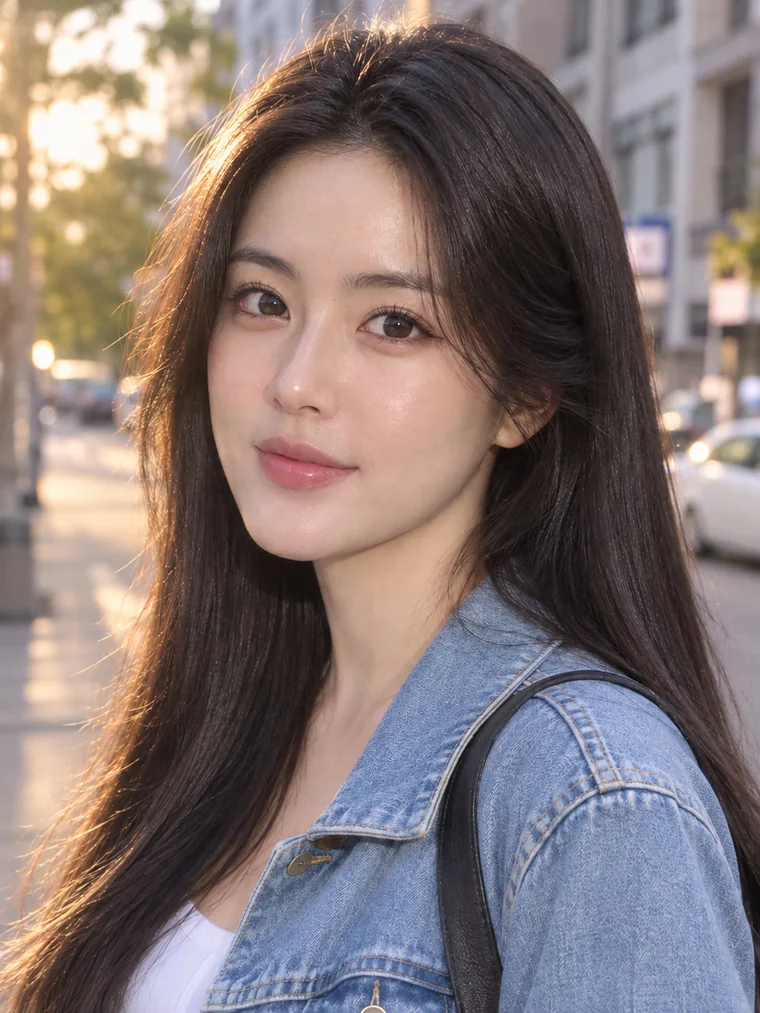
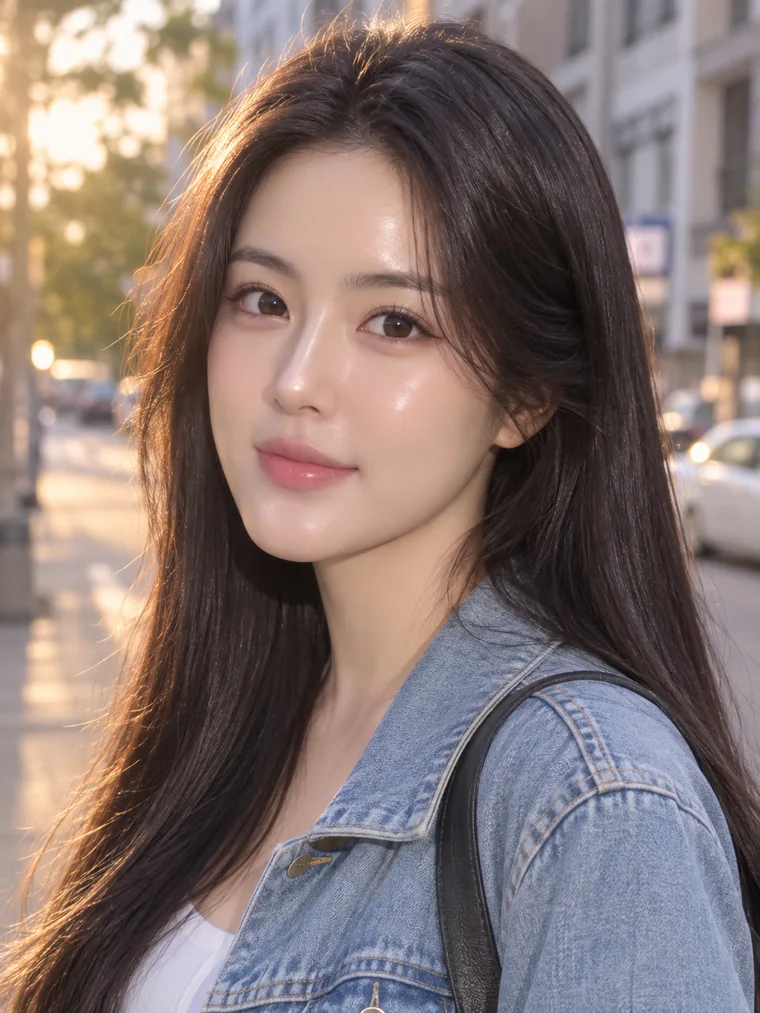
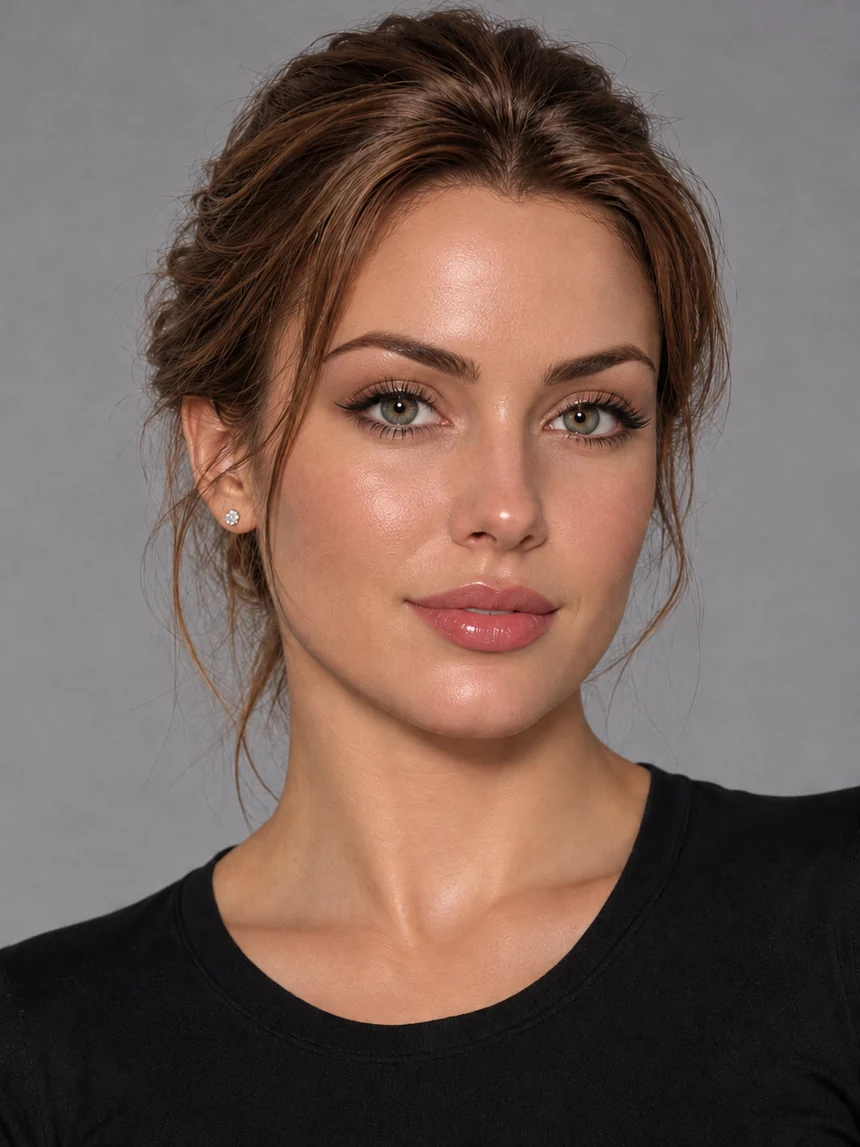
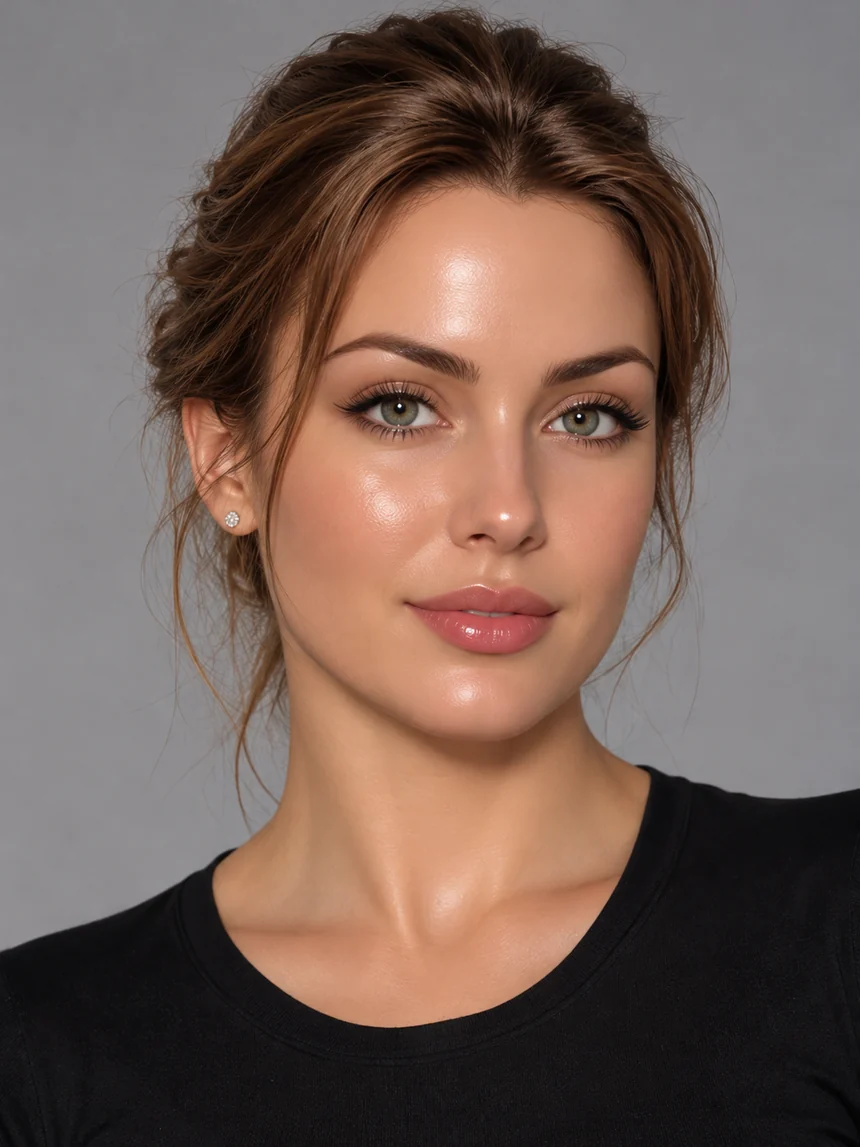
AfterBeforeBeforeAfter

Drag the slider to compare. Upload your own portrait and click Generate to see your result here.

See how it works
  • Natural pores
  • Same face, same identity
  • JPG, PNG, WebP

About

What is AI Enhance Kit?

AI Enhance Kit is an online AI image enhancer, starting with an AI skin texture enhancer. You upload a portrait that looks plastic or over-smoothed, usually an AI-generated image or an over-retouched photo, and it returns a new version with natural pores, fine lines and tonal variation, while the face, expression, hair and background stay the same. It works in your browser with no install and no editing skills, and you pay per use with credits instead of a subscription.

Image and video enhancement tools are planned next.

Built for
AI portraits from Midjourney, Flux and similar tools, AI headshots and virtual influencers, and real photos that were smoothed too far.
How it works
Upload a JPG, PNG or WebP up to 10 MB. Choose the image type, a texture level and an output quality, then download the result. The edit is fixed, so there are no prompts to write.
AI model
GPT Image 2.5 Flare by OpenAI, accessed through the SeeAPI gateway.
Output quality
1K, 2K or 4K.
Price
New accounts get 2 free enhancements. Credit packs start at $4.99. A 1K result costs 1 credit, and credits never expire.
Your images
Stored so you can see recent results, and deleted when you ask. See the privacy policy for details.

How to enhance AI skin texture in 3 steps

  1. Step 1

    Upload your portrait

    Drop in an AI-generated or over-smoothed photo. JPG, PNG and WebP are supported, up to 10 MB.

  2. Step 2

    Choose the texture level

    Pick Natural, Detailed or Ultra realistic. Start light, since real skin is subtle.

  3. Step 3

    Generate and download

    Compare the result with your original, check the face at 100% zoom, then download the enhanced image.

Turn plastic AI faces into lifelike portraits

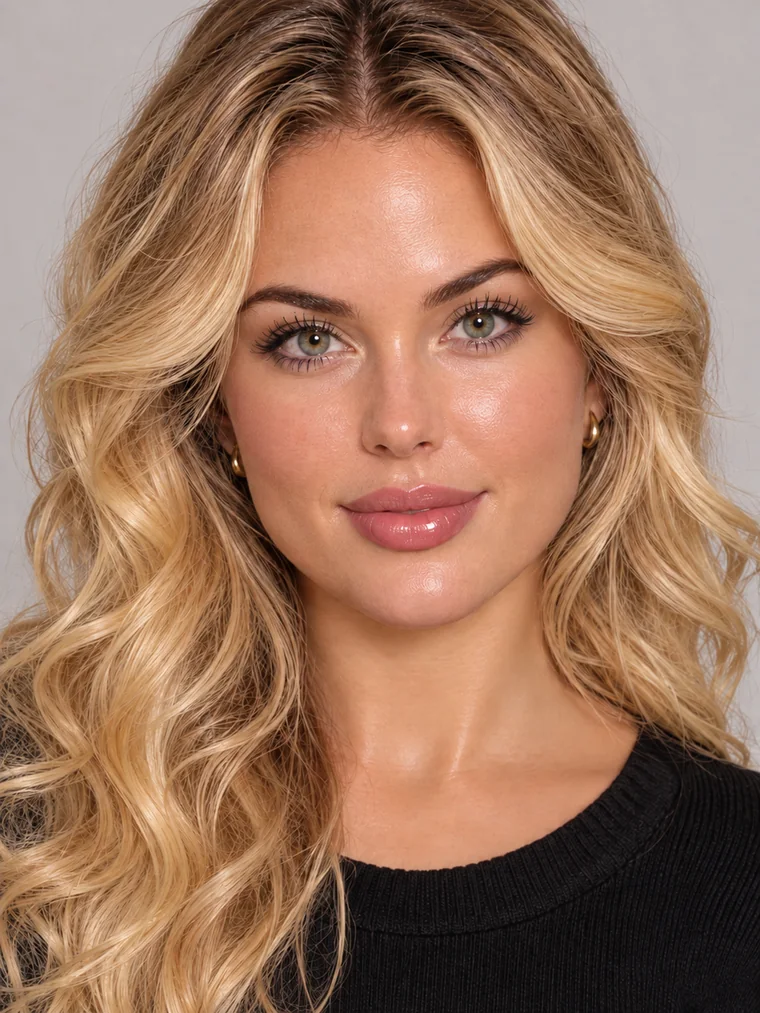
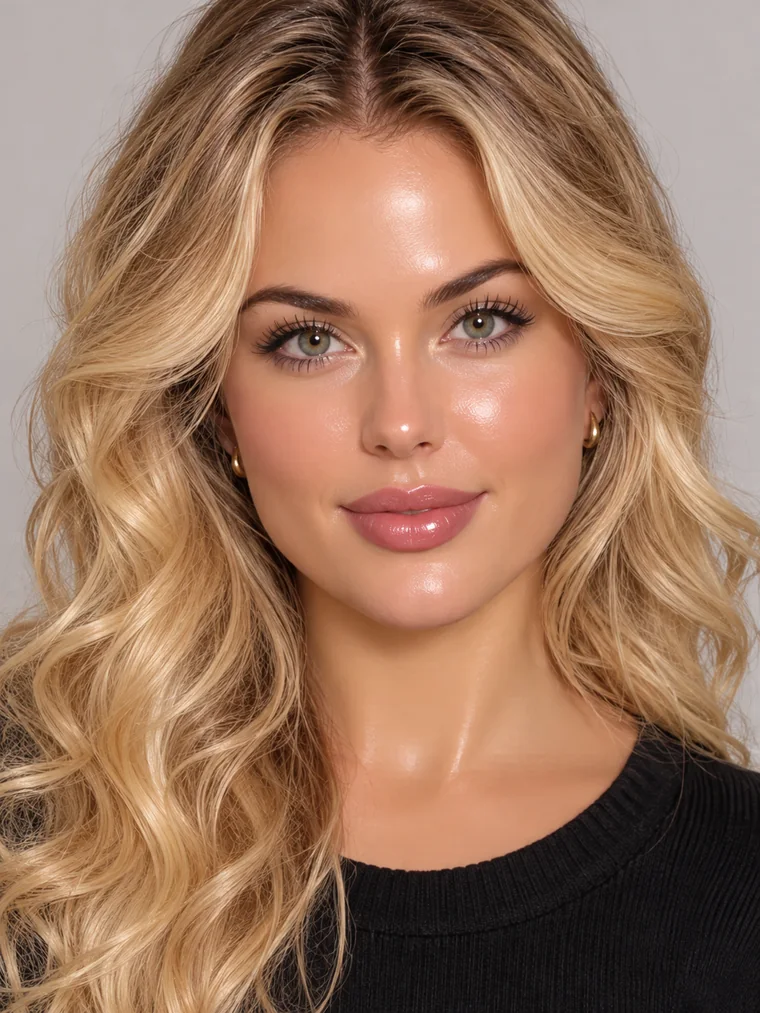
AfterBeforeBeforeAfter

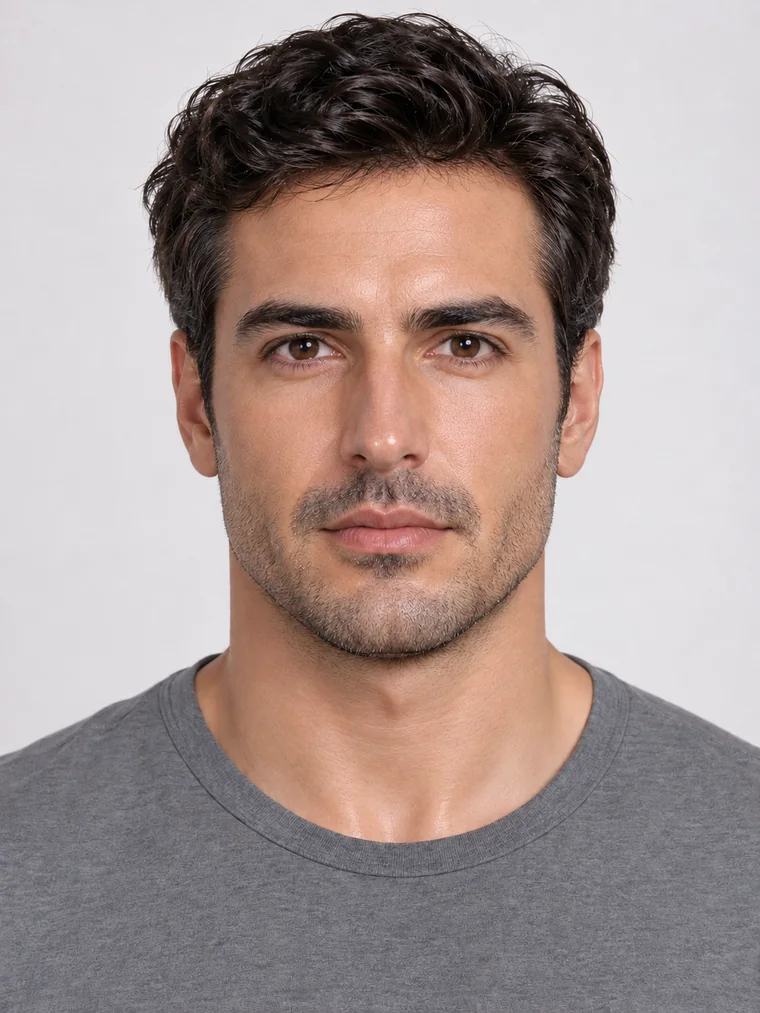
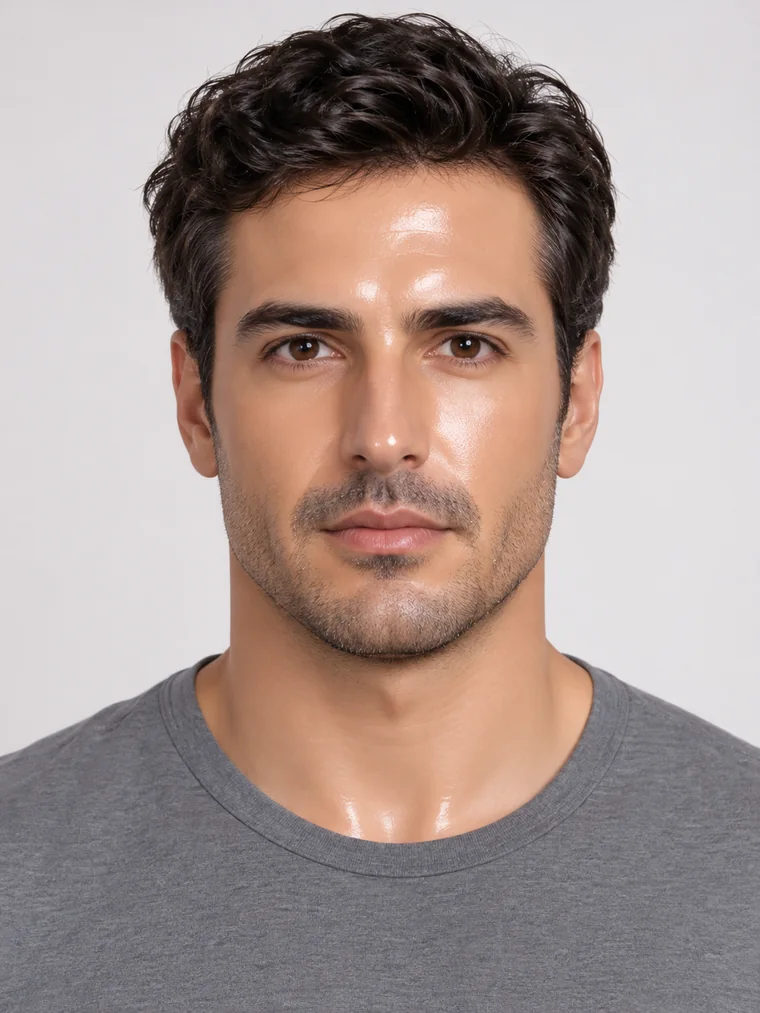
Realistic skin texture AI that restores natural pores

AI generators often smooth skin into a waxy surface. The enhancer rebuilds pores, fine lines and tiny tonal variation so cheeks, forehead and nose read as real skin instead of a render.

Try it free →
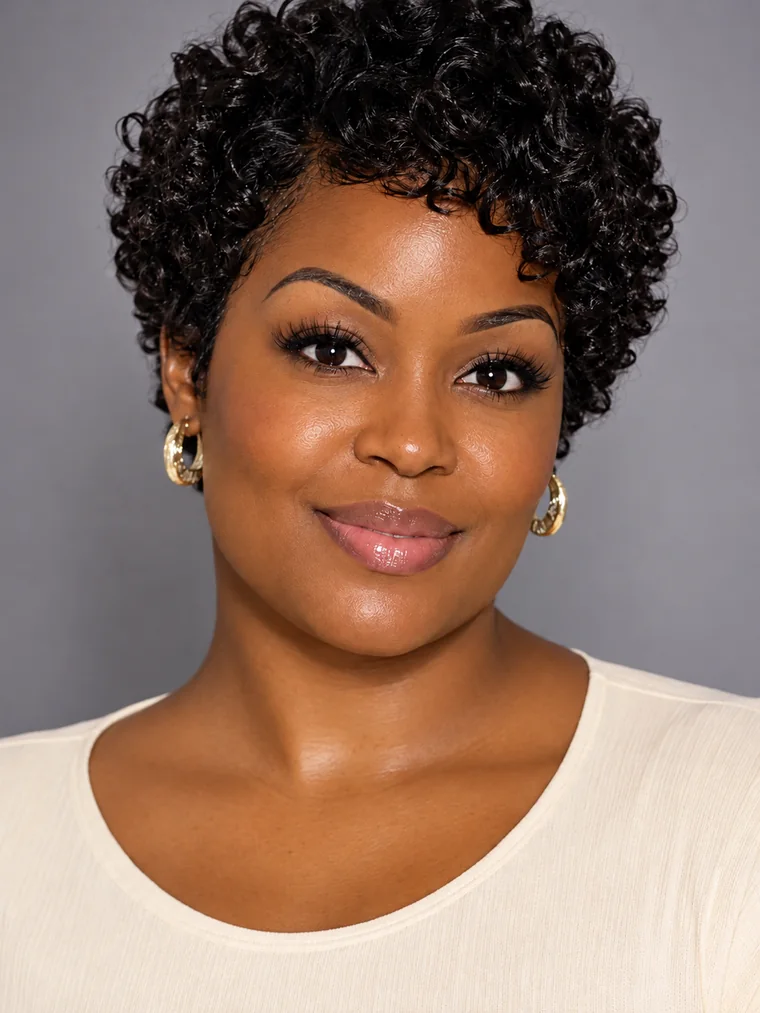
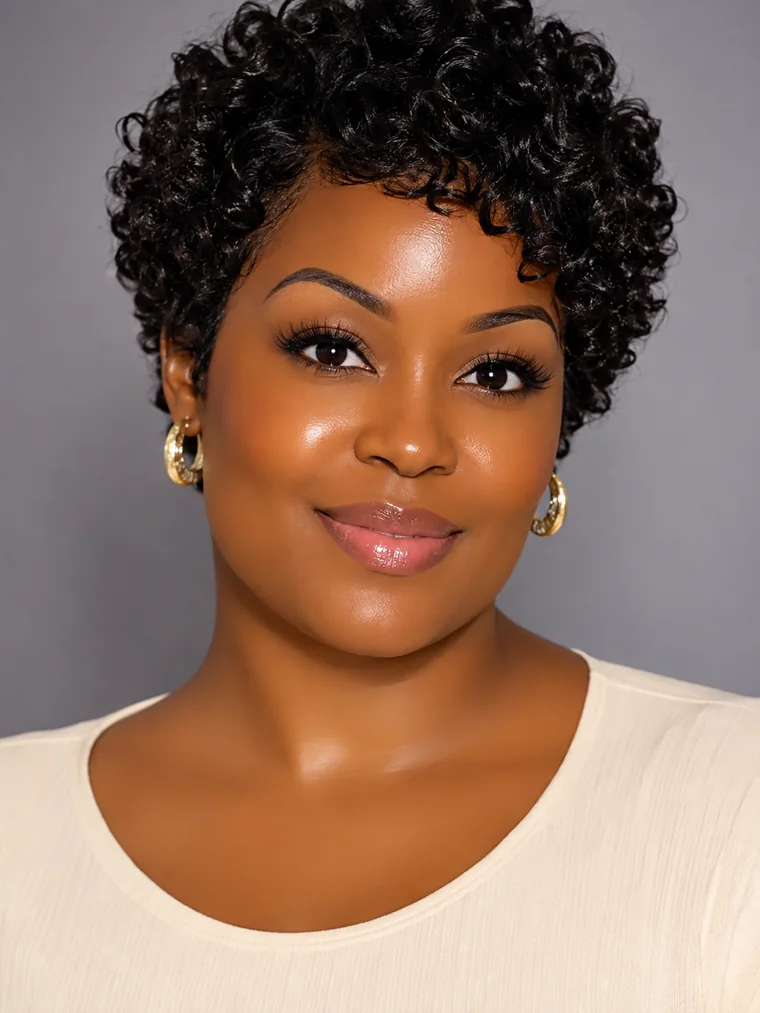
AfterBeforeBeforeAfter

Keep the same face, change only the skin

Only surface detail is reworked. Bone structure, proportions, expression, eyes and lips stay as they were, so the person still looks like the person.

Try it free →
AfterBeforeBeforeAfter

Fix AI skin from Midjourney, Flux and other generators

Already have the image? You do not need to re-roll the prompt. Run the portrait you have through the enhancer and fix AI skin as a finishing step, then compare it with the original.

Try it free →
AfterBeforeBeforeAfter

Remove plastic skin from AI images

That glossy, over-even finish is the usual giveaway of an AI portrait. Removing plastic skin means adding back the uneven, slightly imperfect detail real skin has, not just sharpening the image.

Try it free →

Who uses an AI skin texture enhancer?

AI portrait artists

Take generated portraits from plastic to photographic before they go to a client or a print shop.

AI influencers & creators

Keep a consistent, believable look for virtual characters and social content.

Headshots & profile photos

Rescue an AI headshot that looks like a wax figure so it works for LinkedIn or a team page.

Photographers & retouchers

Bring texture back to a portrait that was smoothed too far in editing.

How to make AI skin look realistic

The tool does the heavy lifting, but a few habits make the difference between "better" and "believable".

  • Judge at 100% zoom

    Check cheeks, forehead and nose at full size. Uniform grain or razor-sharp edges are signs the texture is too strong.

  • Start with Natural

    Real skin is subtle. Raise the level only if pores still look missing.

  • Check eyes, lips and nose

    Compare against the original. These features should not change shape or colour.

  • Keep your original

    If you still have an untouched photo, blend its real detail back in. Generated texture is a plausible rebuild, not the original pores.

More AI enhancement tools are on the way

Coming soon

AI Image Enhancer

Sharpen, denoise and upscale any photo.

Coming soon

AI Video Enhancer

Bring the same clean-up to video.

Frequently asked questions

Make your AI portraits look real

Upload a portrait and see natural skin texture in seconds.

Try the skin texture enhancer